Drosstacker

Focus stacking for Lightroomby Albert Dros

Lightroom can't focus stack? Guess again.

With this little plugin that I developed, you simply select your photos in Lightroom and focus stack them, in a super simple way.

Right in Lightroom, no need to go into Photoshop at all. And the great thing: it's super fast. Your Lightroom edits are included, and the stacked result lands right next to your original photos in the catalog.

Right in Lightroom

One menu item. Select, click, done. The stack appears in your catalog.

No Photoshop needed

No layers, no auto-align, no auto-blend, no round trips. Stay in Lightroom.

Super fast

A stack of five 61 megapixel photos takes about ten seconds.

How it works

Three clicks, one sharp photo

Eight photos of a focus series selected in the Lightroom filmstrip
1

Select your files

Select your files in Lightroom. Edit them first if you like, your edits are included.

The DROSSTACKER: Focus Stack menu item in Lightroom
2

Run DROSSTACKER

Go to File → Plug-in Extras → DROSSTACKER: Focus Stack.

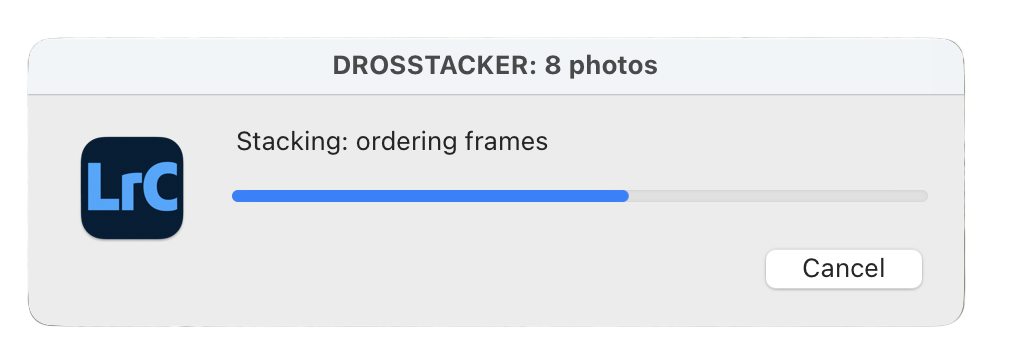
The DROSSTACKER progress window in Lightroom while stacking 8 photos
3

Wait... done!

You'll get a TIFF file that's already selected, with your photos stacked. It's that easy.

How to install

Up and running in a minute

  1. Download DROSSTACKER (fill in your email below, the link arrives by mail) and unzip it. You get a folder DROSSTACKER with the plugin DROSSTACKER.lrplugin and this guide as a PDF.
  2. Move it somewhere permanent, for example your Pictures folder (Mac) or Documents folder (Windows). Lightroom needs to find it every time it starts.
  3. In Lightroom Classic, open File → Plug-in Manager, click Add, pick the DROSSTACKER.lrplugin folder and click Done.
  4. Select your photos and go to File → Plug-in Extras → DROSSTACKER: Focus Stack. That's it.
Works withLightroom Classic (version 6 or newer)
SystemmacOS (Apple Silicon and Intel) and Windows. One download works on both.
Security promptIf macOS says the plugin "cannot be verified" the first time you run it, open System Settings → Privacy & Security, scroll down and click Open Anyway. On Windows, click More info → Run anyway if SmartScreen shows a warning. You only need to do this once.
Free download

Get DROSSTACKER

Leave your email and we'll send you the download link.

Thanks! Now check your inbox.

We've just sent you an email. Click the button in it to confirm your address, and DROSSTACKER downloads right away, together with a short install guide.

Nothing there after a minute? Check your spam or promotions folder.

Your email is only used for my newsletter. No spam, no sharing your data.